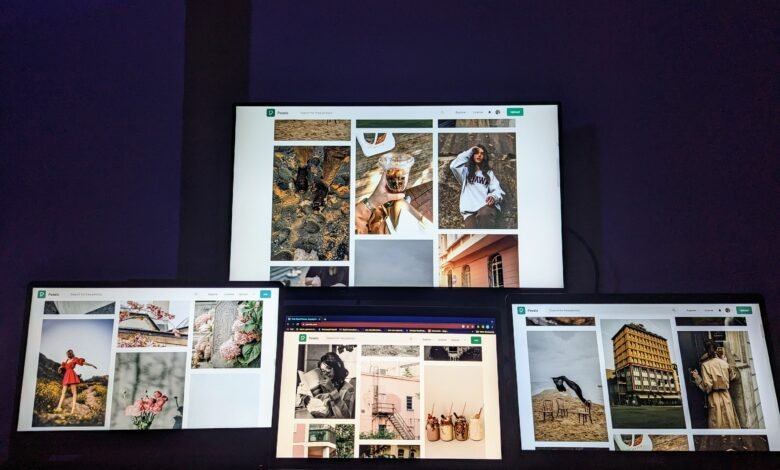
A single laptop screen was never really built for the way most of us actually work. Between a video call, a document, a browser full of reference tabs, and whatever spreadsheet or dashboard is running in the background, one 13- or 14-inch display fills up fast. Desktop users solved this years ago by bolting on a second or third monitor. Laptop users, especially anyone who doesn’t work from the same desk every day, need a version of that setup they can pack away at the end of the day, which is exactly the gap portable monitors have filled.
Here’s how to think about building a genuine multi-screen laptop setup in 2026: what to add, how to mount it, and which configurations actually make sense depending on how you work.
Why One Screen Isn’t Enough Anymore
The push toward multiple screens isn’t just a preference, it maps onto how modern work actually gets done. A developer needs code, documentation, and a terminal visible at once. An analyst needs a dataset, a model, and a reporting tool side by side. A writer researching a piece needs source material open while drafting. In every one of these cases, cramming everything into one window (or constantly alt-tabbing between them) adds friction that a second screen removes instantly.
The reason this has become a laptop conversation rather than a desktop one is simple: more people are untethered from a fixed desk than ever before, and a fixed dual-monitor arm doesn’t travel with you.
Single vs. Dual Portable Monitor Setups
Before buying anything, it’s worth deciding how much extra screen you actually need:
- One additional screen (dual-monitor setup) is enough for most people — it roughly doubles your usable space and covers the majority of multitasking needs: a call plus notes, a document plus a reference tab, code plus documentation.
- Two additional screens (triple-monitor setup) makes sense for specific, screen-hungry workflows — trading desks, video editing, software development with multiple panes, or anyone regularly juggling four or more active windows. It’s a bigger investment in both money and desk space, so it’s worth confirming you’ll actually use the extra real estate before buying two units (or a dedicated dual-panel unit built for this purpose).
Mounting and Stand Options
How the extra screen attaches to your setup matters as much as the screen itself:
- Built-in kickstands are the simplest option — the monitor stands independently next to your laptop on a desk. Easiest to set up, but takes up more physical desk space.
- Laptop-attached brackets or clip-on mounts attach the extra screen directly to the back of your laptop lid, folding out to the side. This is the space-efficient choice for small desks, coffee shops, or coach seats on a plane, since the whole setup moves as one unit.
- Portable monitor arms exist for people who want a more desk-like setup even while traveling, though they add bulk and are better suited to a semi-permanent travel base (like a long-term Airbnb or a consistent hot-desk) than daily carry.
Cable and Power Management for Multi-Screen Rigs
The more screens you add, the more cable management becomes its own small project. A few things that make multi-screen setups noticeably less annoying:
- USB-C daisy-chaining, where supported, lets one monitor pass a video signal through to a second, cutting down on the number of cables running back to the laptop.
- Single-cable power-and-video setups (rather than a separate power brick per monitor) keep the whole rig closer to “unpack and go” than “assemble a small server room” every time you sit down.
- Confirming your laptop’s port bandwidth matters once you’re driving two extra displays — not every USB-C port can carry two additional video signals plus power, so it’s worth checking your laptop’s specific port capabilities rather than assuming everything will “just work.”
Brands like UPERFECT are commonly used in these setups because their monitors are built around this kind of straightforward, low-cable-count configuration rather than requiring a hub and multiple adapters to get two extra screens running.
Software Considerations
The hardware is only half of a good multi-screen setup — the operating system side matters too:
- Display arrangement settings (in Windows Display Settings or macOS’s Displays preferences) need to match your physical monitor layout, or your cursor will jump in confusing directions between screens.
- Window-snapping tools (built into Windows 11, or third-party apps like Magnet or Rectangle on Mac) make it much faster to arrange windows across three screens instead of manually dragging and resizing every time.
- Resolution matching across screens avoids the visually jarring effect of text and icons being different sizes as your cursor moves from one display to the next.
Recommended Configurations by Profession
Different workflows tend to converge on different multi-screen setups:
- Developers — code editor on the laptop, documentation/browser on one portable screen, terminal or logs on a second if going triple.
- Analysts and traders — data source or live feed on one screen, working model or report on the laptop, communication tools on a third.
- Streamers and content creators — editing timeline on the largest available screen, preview or chat/monitoring on a portable second screen.
- Customer support and ops roles — ticketing system on one screen, knowledge base or internal chat on the other, keeping the main workflow uninterrupted by lookups.
If you’re building toward one of these setups, it’s worth browsing a dedicated portable monitor lineup rather than piecing one together from mismatched listings — it makes it much easier to confirm two units will actually match in resolution and color before you buy.
Three Portable Monitors Worth Comparing for Multi-Screen Setups
Not every “portable monitor” is built the same way for this specific use case — some are designed to sit independently, others are designed to physically attach to your laptop. Here’s how a few well-known options compare:
- UPERFECT — Offers standalone kickstand-based portable monitors with single-cable USB-C setups, a straightforward option if you’d rather keep the extra screen separate from the laptop itself and reposition it freely on a desk.
- Mobile Pixels (Trio series) — Built specifically around the clip-on, laptop-attached model — one unit clips on for a dual-screen setup, two clip on for a triple-screen setup, folding away when not in use. This is one of the more purpose-built options for people who specifically want the “attached to the laptop” configuration described above.
- ASUS ZenScreen — A long-running, well-reviewed line known for slim builds and dependable laptop compatibility; a solid choice if you want a widely supported standalone monitor with a strong track record.
The right pick really depends on the mounting style you decided on earlier in this guide — standalone kickstand setups and laptop-attached clip-on setups solve the same problem in different ways, and it’s worth choosing based on your desk space and how often you’re moving locations, not just the spec sheet.
When a Business-Grade Monitor Makes Sense
Most multi-screen setups described so far are built for personal productivity, but the calculation changes a bit for professionals doing client-facing or executive-level work. In those cases, color accuracy, a more polished physical design, and consistent performance across long days matter more than squeezing in a third screen. If that describes your situation, it’s worth looking specifically at a business monitor line built around that use case rather than a general productivity model — the difference shows up most in presentations, video calls, and any work where visual polish is part of the impression you’re making.
FAQ
Can I run three screens off one laptop?
Often, yes — but it depends on your laptop’s port capabilities and graphics hardware. Check how many external displays your specific laptop supports before buying two additional monitors, since not every model can reliably drive two extra screens at once.
Do I need a docking station?
Not necessarily. Many portable monitors connect directly via USB-C without a separate dock, especially for a single extra screen. A docking station becomes more useful once you’re running two extra displays plus other peripherals (keyboard, mouse, external drives) through a laptop with limited ports.
Will extra monitors drain my laptop’s battery fast?
Yes, to some degree — externally powered monitors draw from your laptop unless they have their own power source or pass-through charging. If battery life on the go is a concern, look for lower-power models or keep a charger handy for longer multi-screen sessions.
Final Thought
A multi-screen laptop setup isn’t about maximizing the number of displays you can physically attach — it’s about matching the number and mounting style of extra screens to how you actually work. One well-chosen portable monitor solves the multitasking problem for most people; two makes sense for genuinely screen-hungry workflows. Get the mounting style and cable setup right, and the whole rig becomes something you can pack up and rebuild in a couple of minutes, wherever you’re working from next.