The first time I added a second screen to my laptop, I expected the biggest improvement to be having more space. That was true, but it was not the whole story. The real advantage came from being able to separate tasks instead of constantly switching between windows.
I could keep a browser open on one display, work on a document on another, and still have room for messages or reference material. Once I started using multiple screens regularly, I also learned that the setup depends on more than simply plugging in another monitor. A laptop multiple monitors arrangement can be extremely useful, but getting a smooth experience requires some planning.
Start With the Laptop, Not the Monitors
Before buying extra displays, I would check what the laptop can actually support. Some computers can handle two or more external displays, while others have limitations based on the graphics hardware, operating system, or available ports. A laptop may also support different resolutions or refresh rates depending on how the displays are connected. This is why I would check the manufacturer’s specifications first.
It is also worth looking at the ports on the laptop. HDMI, USB-C, Thunderbolt, and DisplayPort connections can all play different roles in an external display setup. If the laptop does not have enough native video outputs, a compatible dock or adapter may be necessary. Knowing these limitations beforehand can save a lot of frustration later.
Decide What Each Screen Is For
I think multiple monitors work best when each screen has a purpose. For example, I might use the laptop’s built-in display for communication and everyday controls while keeping a larger monitor for the main project. Alternatively, I could dedicate one external display to research and another to writing or editing. There is no single correct arrangement.
The important thing is avoiding a setup where every screen simply shows a collection of unrelated windows. Having a rough idea of which tasks belong on each display makes the extra space much more useful. For creative work, spreadsheets, coding, research, and video editing, the ability to keep reference material visible while working can save a surprising amount of time.
Connecting a Computer to a TV
A television can also serve as a large external display when the appropriate connections are available. An hdmi to hdmi computer to tv connection is one of the simplest ways to send video and audio from a compatible computer to a television. HDMI carries both, so you may not need a separate audio cable. This can be useful when showing presentations, watching content from a computer, viewing photos, or simply using a much larger screen.
However, a TV is not always a perfect replacement for a computer monitor. Television displays can have different refresh rates, image processing, and input-lag characteristics. For productivity tasks, text clarity and viewing distance also matter. For occasional use, though, connecting a laptop to a TV can be a practical solution without purchasing another monitor.
Pay Attention to Resolution
Once multiple displays are connected, resolution becomes more important. A laptop might have one display running at a high resolution while another external screen uses a different setting. The operating system generally allows you to configure them independently, but the experience can vary.
Text may appear larger on one screen than another, and moving windows between displays can sometimes feel slightly awkward when their scaling settings are very different. I prefer choosing settings based on readability rather than simply selecting the highest available resolution. If I have to constantly squint at small text, the extra pixels are not helping much.
Placement Can Affect Comfort
A technically perfect monitor setup can still be uncomfortable if the screens are positioned badly. I would try to keep the main display close to eye level and at a comfortable viewing distance. If one screen is used more often than the others, it makes sense to place it directly in front rather than repeatedly turning the head toward the side. For two external monitors, positioning them at a slight angle can create a more natural viewing area.
The laptop itself can also be raised on a stand if it is being used as a third display. This can help create a more consistent height between screens. Comfort matters because a monitor arrangement is something you may use for several hours at a time.
Don’t Forget the Cables
Cable management becomes noticeably more difficult when you add multiple displays. Each monitor may require a power cable and a video connection. Add a laptop charger, keyboard, mouse, speakers, and other accessories, and the desk can become crowded quickly.
I find it useful to plan where each cable will run before connecting everything. Keeping video cables at reasonable lengths and routing them behind the desk can make the setup easier to maintain. If adapters are necessary, I would also label them when several connections look similar. It is a small organizational step that can save time when troubleshooting later.
A Dock Can Simplify Everything
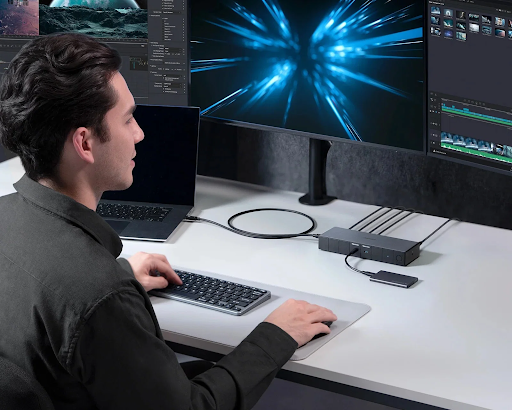
For people who regularly connect and disconnect a laptop from multiple displays, a docking station can be worth considering. Instead of plugging several individual cables into the laptop every time, a compatible dock can centralize many of those connections.
This can be particularly useful in a home office. I can leave the monitors, keyboard, mouse, network connection, and other accessories connected to the dock and use a single connection to the laptop. Because the keyboard stays put, it is worth choosing one you enjoy typing on, and plenty of home workers upgrade to mechanical keyboards for the steadier feel over a long day. The important word is compatible. Not every dock supports every laptop, resolution combination, or number of displays, so specifications should be checked before buying.
Think About Performance
Adding screens does not automatically mean the laptop will struggle, but workload matters. Displaying static documents across several monitors may be relatively light compared with gaming, 3D work, high-resolution video editing, or other graphics-intensive tasks. If performance drops after adding external displays, I would look at what applications are running and what resolutions and refresh rates the screens are using. A multiple-monitor setup should improve productivity, not turn every task into a performance test.
Keep the Setup Simple
More screens do not always mean more productivity. If I spend more time deciding where every window should go than actually working, the setup has become counterproductive. I prefer starting with two screens and adding another only if there is a clear reason, such as using an hdmi to hdmi computer to tv connection for an additional display. Once the arrangement feels natural, it becomes easier to determine whether another display would genuinely help. The goal is not to fill every available port. The goal is to create enough workspace to work comfortably.
Final Thoughts
A multiple-monitor laptop setup can make everyday computing much more efficient when it is planned around actual tasks. Before buying anything, check your laptop’s display capabilities, available ports, supported resolutions, and whether a dock or adapter is required. Then think about how you will use each screen. Good placement, sensible scaling, manageable cables, and reasonable performance can make a bigger difference than simply adding more displays. And if a television is already available, an HDMI connection can provide another large-screen option for presentations, entertainment, or occasional work. The best setup is ultimately the one that gives you more useful space without adding unnecessary complexity.
FAQs
1. Can every laptop support multiple external monitors?
No. Support depends on the laptop’s hardware, graphics capabilities, operating system, and available display outputs. Always check the specifications for your particular model.
2. Can I connect my laptop to a TV using HDMI?
Yes, if the laptop and TV have compatible HDMI connections. HDMI can typically carry both video and audio, making it a convenient option for connecting the two.
3. Do I need a docking station for multiple monitors?
Not always. If your laptop has enough suitable video outputs, you may be able to connect the monitors directly. A dock can simplify the setup when several accessories need to remain connected.
4. Will multiple monitors slow down my laptop?
It depends on the laptop and what you are doing. Basic productivity tasks may have little noticeable impact, while demanding graphics workloads can require significantly more system resources.
5. Should all my monitors have the same resolution?
They do not have to. However, using similar resolutions and scaling settings can make moving between displays feel more consistent and comfortable.